


Apricot Support | Best practices for contacting support
For questions specific to product support, please follow the methods below to get help from a product specialist.
Important: For all other inquiries—including questions related to billing, sales, or account management—please visit Support.
Method one: Use in-product support
The fastest way to get help is through the support chat built into Apricot. Click the question mark icon in the lower-right corner of your screen, select Contact Support, then type your question in plain language. The chat responds with answers sourced from Apricot's help center and can connect you to a support agent if you need more help.
For a full walkthrough of the in-product support experience, see Getting In-Product Support in Apricot.
Method two: Submit a request through the support portal
You can submit a support request directly from the Bonterra support portal at bonterra.zendesk.com. Click Submit a Request and complete the form with details about your issue.
To learn how to access the portal, create an account, and manage your cases, see Apricot Support | Support Portal.
Method three: Email Apricot Support apricot@bonterratech.com
Use email only if Apricot is completely down, if you can't access the in-product chat or support portal, or if you're forwarding important context from a previous email thread. Because we only receive your email address and the content of the message, this method may require more back-and-forth to investigate your issue.
When emailing, always include:
- Your Apricot username (if different from the email address you're sending from)
- Your organization's full legal name
- Your full name
- The URL to the record or report with the issue
- The report and/or form name
- Reproduction steps so we can reproduce the issue
- Screenshots, if available — include the entire Apricot screen, not just a cropped error message
What to include for general issues
The following applies when submitting through the portal or by email. If you're submitting through the portal, your organization name is captured automatically.
- URL — Copy the full URL from your browser's address bar. This tells us exactly where you are in the system. Include as many URLs as are relevant to the issue.
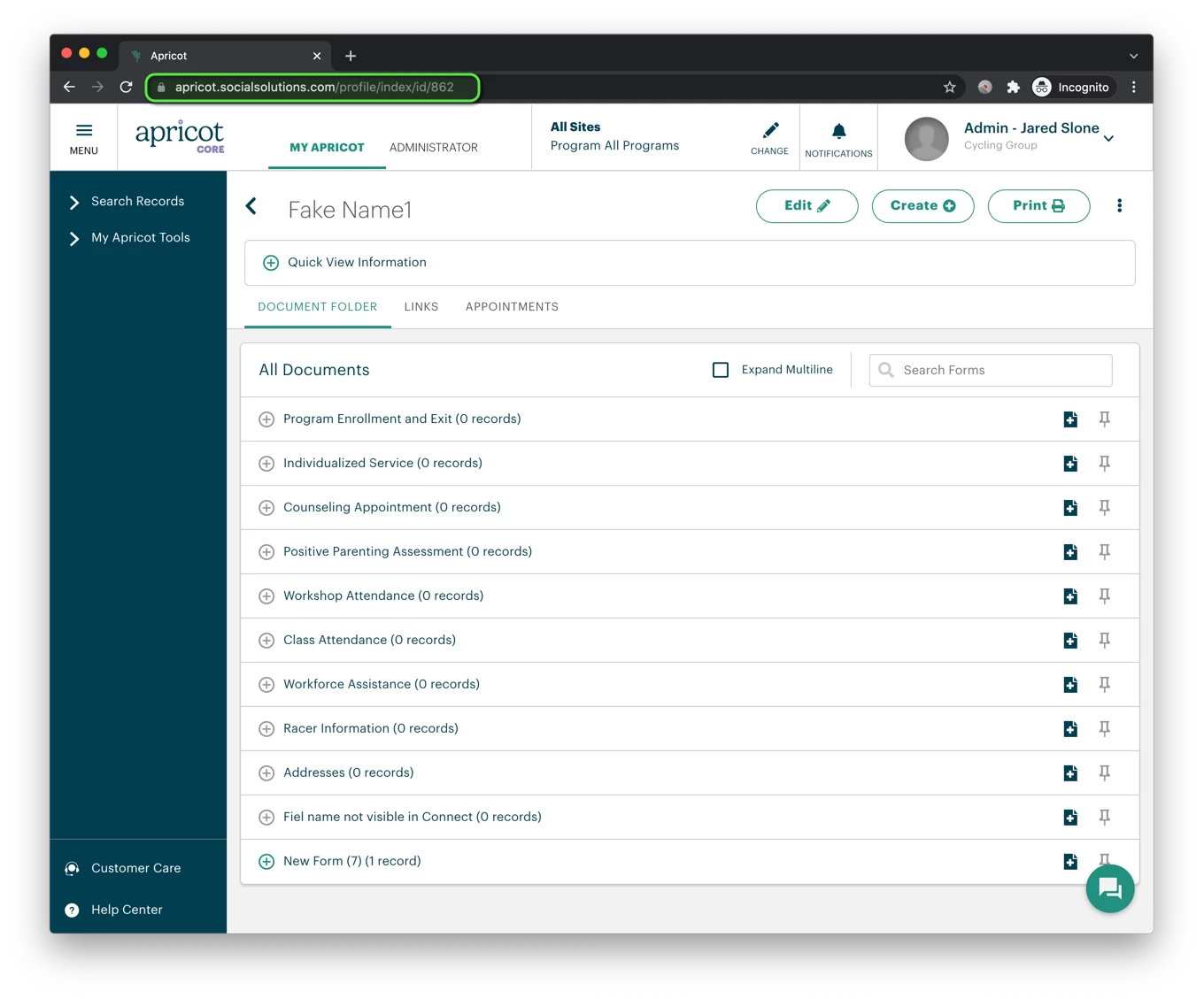
- Screenshot — Include a screenshot whenever possible. If the issue involves an error, the full Apricot screen must be visible, including the browser address bar. If sensitive client information is present, you can use photo editing software to obscure it before sending.
- Reproduction steps — Describe the exact sequence of actions that led to the issue, including the expected result. Example:
- Go to [URL]
- Choose "Option 1" in "Field A"
- Click Save
- Notice an error appears
- Expected: the "Record Saved" confirmation display
- Deadline — If you have a time-sensitive deadline, let us know. For example: "This report is due in one week on [date]."
What to include for report issues
- URL
- Screenshot (whenever possible)
- Every filter value in use, if different from the report's default
- A description of why the report results are incorrect
- If a record is missing from the report, the URL to that specific record
- Any relevant reporting deadline
Below is an example of what should be included:
-
This is the report: https://apricot.socialsolutions.com/report/run/report_id/1
-
No screenshot, sensitive information
-
Filters I'm using
-
Start Date = 01/01/2018
-
End Date = 01/30/2018
-
Program = A
-
-
The report is wrong because there are clients missing
-
This is the URL to a client's Program Enrollment record that is missing from the report: https://apricot.socialsolutions.com/document/edit/id/126/parent_id/123
-
Deadline: this is due in exactly 1 week on 02/02/2018
What information should I include when contacting Apricot Support? | How do I submit a support case in Apricot? | What details does Apricot Support need to troubleshoot an issue? | How do I provide reproduction steps to Apricot Support? | What should I include for report issues in Apricot? | How do I attach screenshots to an Apricot support case?