

How do Verified Owners transfer ownership through the Nonprofit Hub?
When a Verified Owner leaves the organization or changes roles, transferring ownership to another team member ensures continuity and maintains administrative access for your organization. The transfer process in the Bonterra Nonprofit Hub allows the current Verified Owner to designate a Secondary User as the new Verified Owner.
The following steps will guide you through the transfer process, whether your new owner is already registered in the Nonprofit Hub or needs to be invited to the portal.
Step 1: Log in to the Nonprofit Hub
Log in to the Nonprofit Hub website (https://connect.bonterra.network/) using your registered account owner's email address.
- Note: If the current, registered, Verified Owner cannot access their account, please follow these instructions.
Step 2: Enter the Organization profile
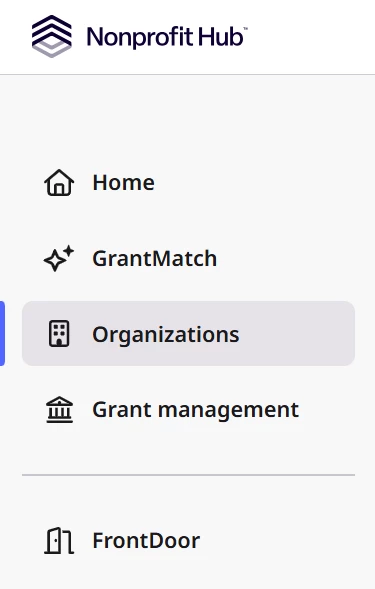
From the Home page, enter the Organizations section through the link on the left side panel. Then, select the name of your organization to view its profile.
Step 3: Navigate to the Users Section
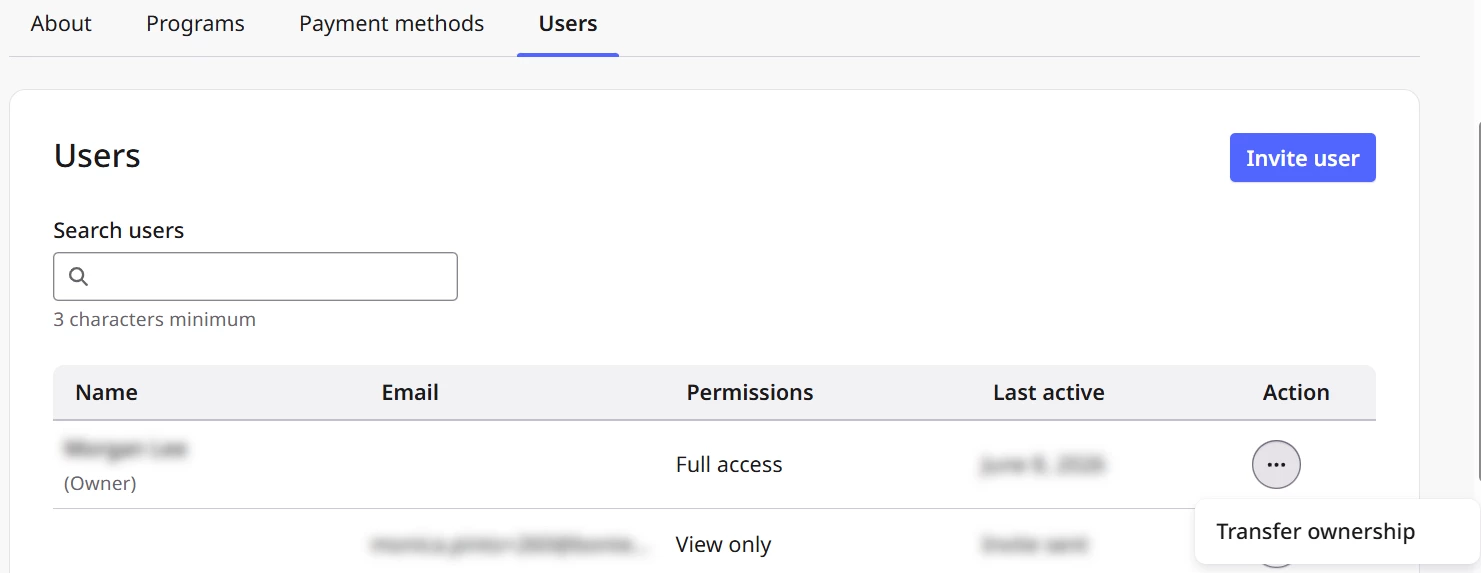
Click on the Users tab within the organization profile. This page displays the current owner and all other users currently associated with the organization, including their names, email addresses, permissions, and verification status.
Step 4: Transfer Ownership
Transfer to a Registered User
If the new owner is already registered in the Nonprofit Hub, in the User’s section, locate their name and click the ellipsis (…) under the Action column to Transfer Ownership from the menu that appears. The system will prompt you to confirm the transfer. You can also select the ellipsis (…) under the Action column beside the current owner’s name to search and select the new account owner.
- Note: After you complete this action, the new owner will become the Verified Owner, and you will no longer have administrative access to the account. This action cannot be undone.
Invite a New User and Transfer Ownership
If the new owner is not yet registered in the Nonprofit Hub, follow these steps:
- In the User’s section of the Organization profile, click ‘Invite user.’
- Enter the new owner's first name, last name, and email address in the provided fields and update their permissions.
- Click Invite User again. The system will send an invitation to the email address you provided.
- Once the invitation is accepted, you can proceed with transferring ownership by selecting the newly invited user from the Users section and confirming the transfer.
Key reminders:
- Only a Verified Owner can initiate an ownership transfer.
- The new owner must be a verified Secondary User in order to receive ownership.
- Ownership transfers cannot be undone. Make sure you are transferring to the correct user.
- After the transfer, the previous owner will no longer have administrative access to the account.
What else do you need help with?
- What are the Bonterra Nonprofit Hub user roles?
- What are the Bonterra Nonprofit Hub User Permissions?
- How do Verified Owners manage users in the Bonterra Nonprofit Hub?
- How do Verified Owners manage Member permissions?
- How do Verified Owners add secondary users to an organization in the Bonterra Nonprofit Hub?
- How do I transfer ownership if the Verified Owner has left the organization?
Not what you’re looking for? Navigate to Organization Profile: Users