

How do I set form permissions for participants in Apricot Connect?
As an Apricot Connect administrator, you control what your participants can see and do in their Connect portal. You can set permissions for each participant type, including which fields they can view or edit on their Tier 1 profile and which Tier 2 forms they can access.
This article covers how to configure those permissions.
Before you begin
Permissions are set at the participant type level. Each participant type is linked to a specific Tier 1 form, and permissions apply to all participants registered under that type.
Access the Permissions settings
- In Apricot, go to the Administrator tab.
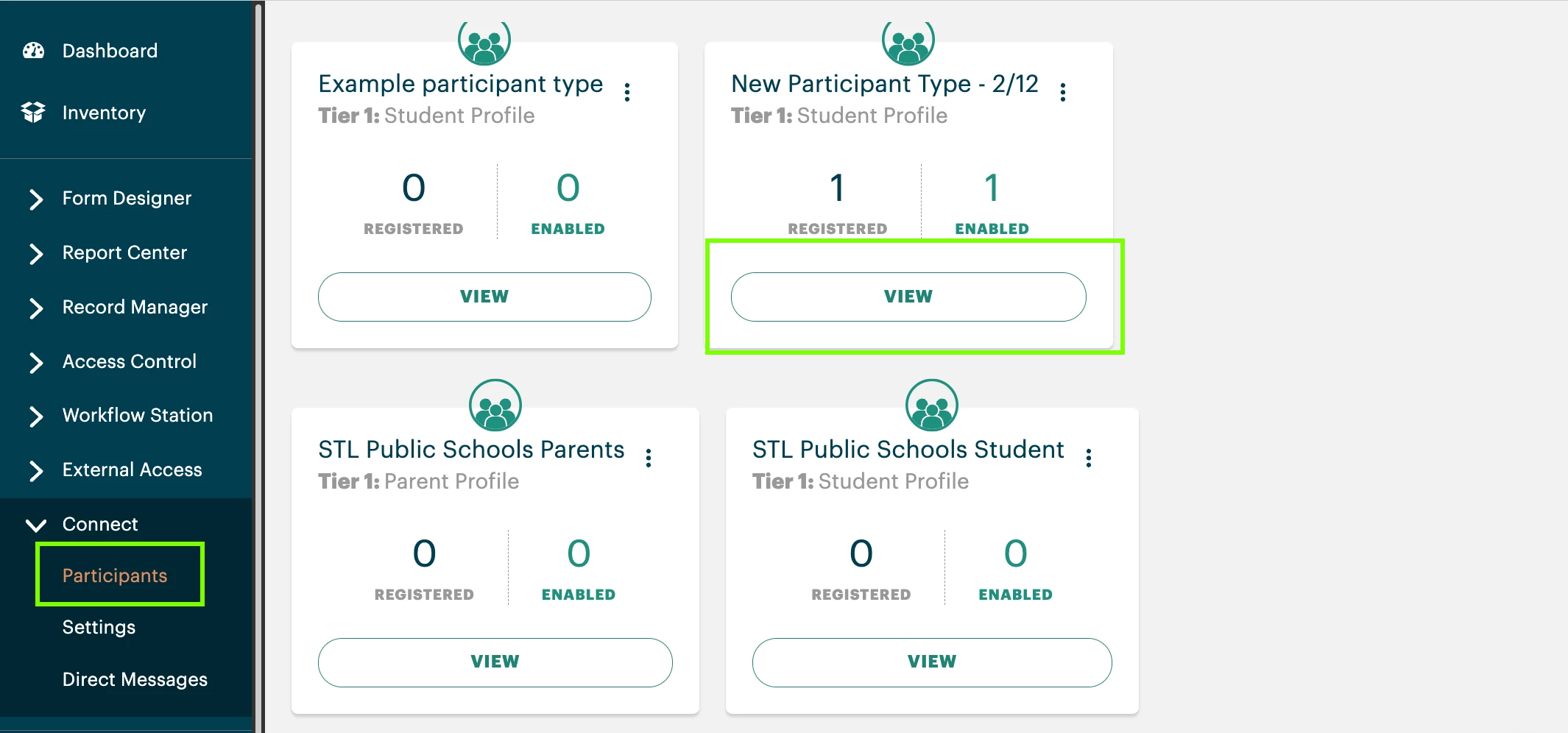
- Click Connect on the navigation bar and select Participants.
- Click View under the participant type you want to configure.
Set personal info permissions (Tier 1)
On the Participant Type page, click Edit Permissions.
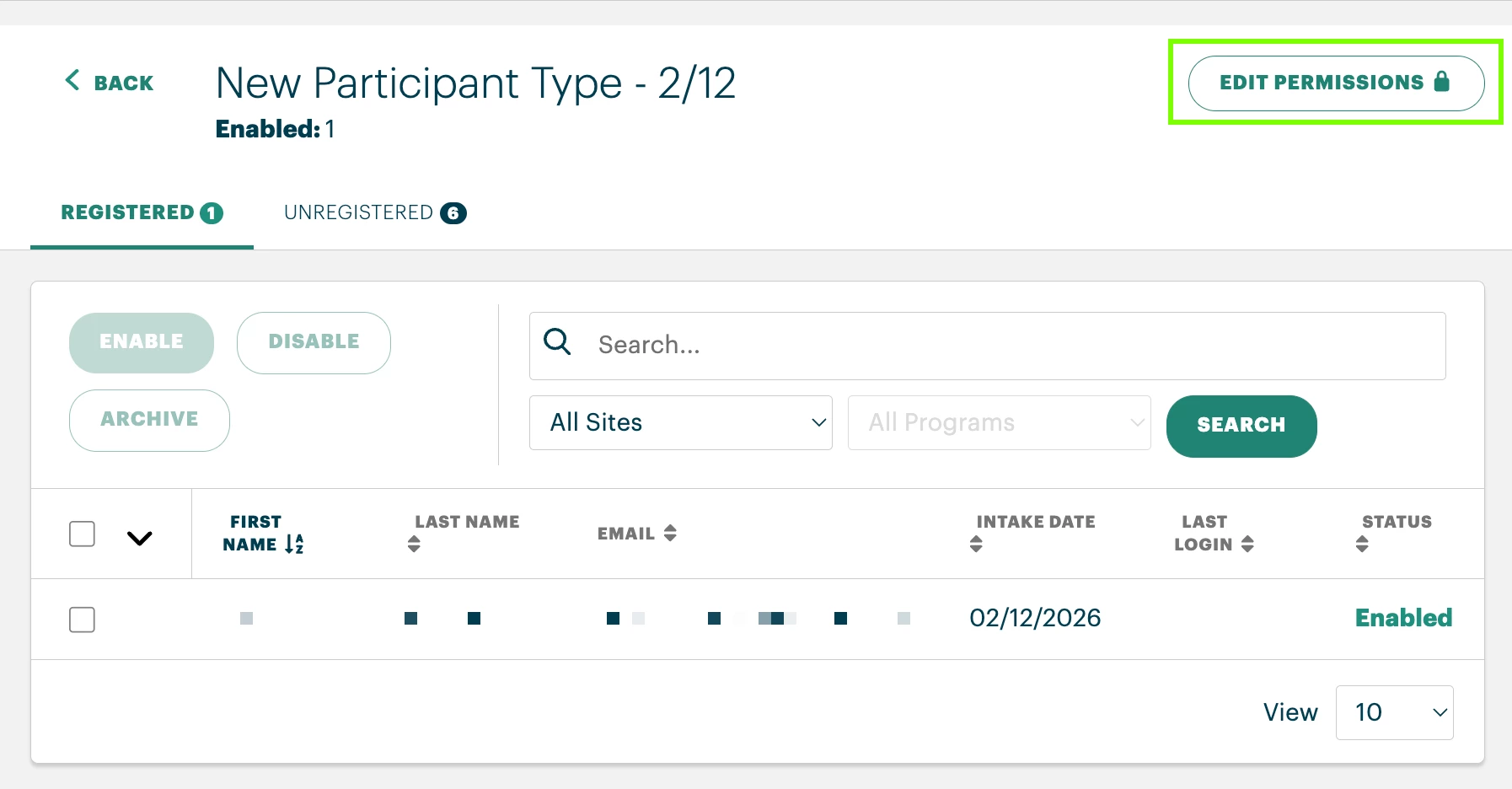
Under the Personal Info tab, you can control which Tier 1 fields participants can view or edit in their Account Information page — for example, their address or phone number.
- Use the View and Edit checkboxes to set access individually by field, or use the mass-select option at the top to apply settings to all fields at once.
Important: It's discouraged to allow participants to edit their email address. Their initial email serves as their Connect username. If a participant needs to change their login email, you'll need to archive them, update the email, and re-enable them in the participant type.
Set form permissions (Tier 2)
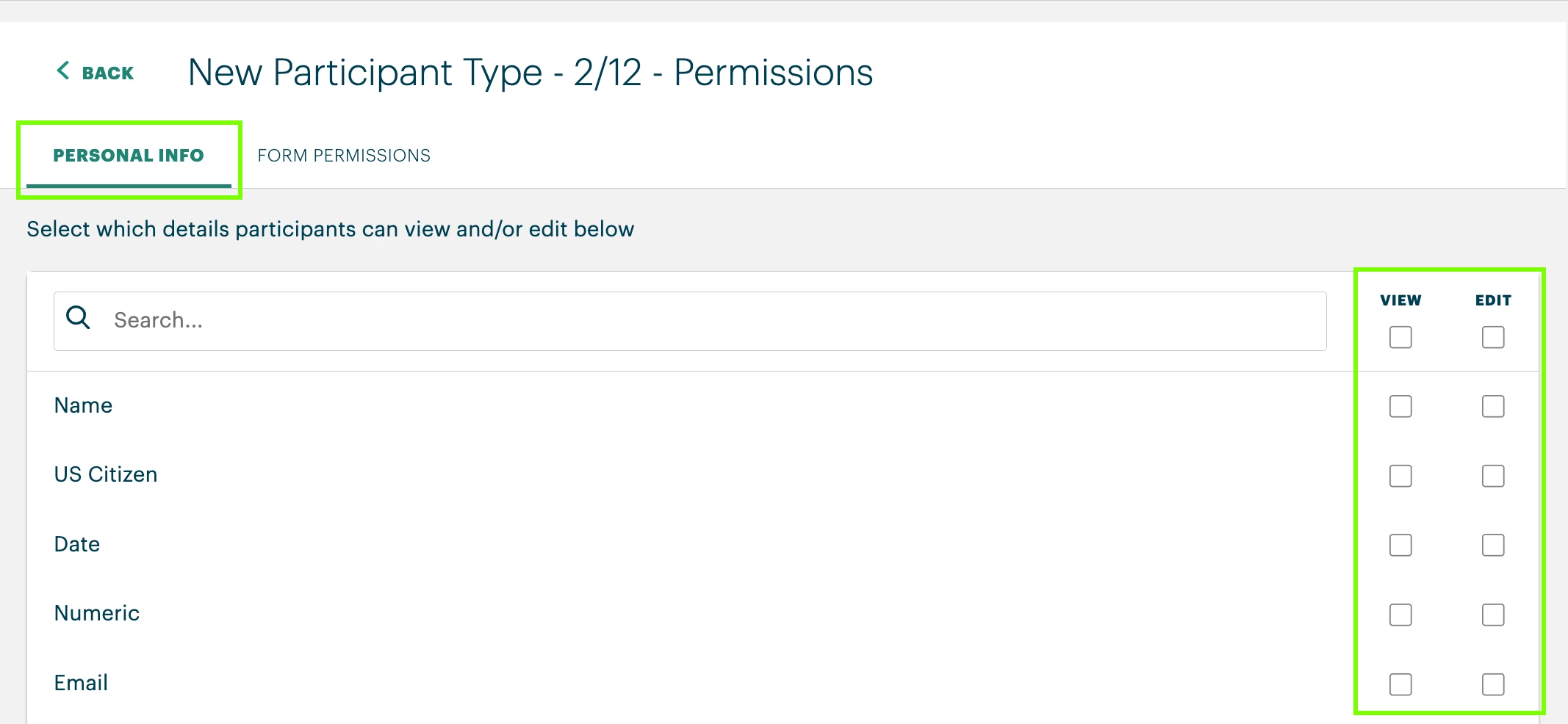
Under Form Permissions, you can control which Tier 2 forms participants can view or submit, and whether they can edit records they've already completed.
- Permissions are set by Tier 2 for, then by program. Select a Tier 2 form in the Available Forms dropdown.
- Use the Read, Create, and Edit checkboxes to set access individually by program, or use the mass-select option to apply settings to all programs at once.
- If you grant Edit access to a form, Read access is automatically assigned as well.
Note: If a participant has edit permission on a Tier 2 form, they can edit all previously completed records of that form type — including records created by internal staff in Apricot, not just records they submitted themselves.
When you're done, click Save for changes to take effect.
What participants see based on permissions
Once permissions are configured, participants will see the following in their portal:
Account Information — accessible from the participant badge in the top right corner of the portal. Participants can view or update only the Tier 1 fields you've enabled. If no personal info permissions are enabled, this section does not appear in their account.
Available Forms — listed on the participant's home screen. Only forms with view or edit permissions enabled will appear here.
Form Submissions — participants can review records they've previously submitted, including records entered on their behalf by staff.
- The eye icon allows a participant to view a submitted record.
- The pencil icon appears only if edit permissions are enabled for that form, allowing the participant to update the record.
What else do you need help with?
How do I set form permissions for participants in Apricot Connect? How do I control what participants can see in Connect? How do I give participants access to edit forms in Apricot Connect? How do I set Tier 2 form permissions in Connect? Why can't my participant see their forms in Connect? How do I allow participants to edit previously submitted records in Connect? What is the difference between view and edit permissions in Apricot Connect?