

How do I add a contact record for an individual?
The most common type of contact record created is for individuals. As the name suggests, individual contacts represent one person – not a household, a business, or a corporation. They could be your donors, friends, board members, etc.
You can easily create a contact record for any individual by following the steps below.
Step 1: Navigate to your 'Donor Management' Dashboard
There are two ways you can add a contact record:
a) Click the 'Contacts' tab
From your Dashboard, click the 'Contacts' tab on the left navigation panel. This will bring you to your 'Contacts' page where you can click the 'Add Contact' button in the upper right corner to get started.

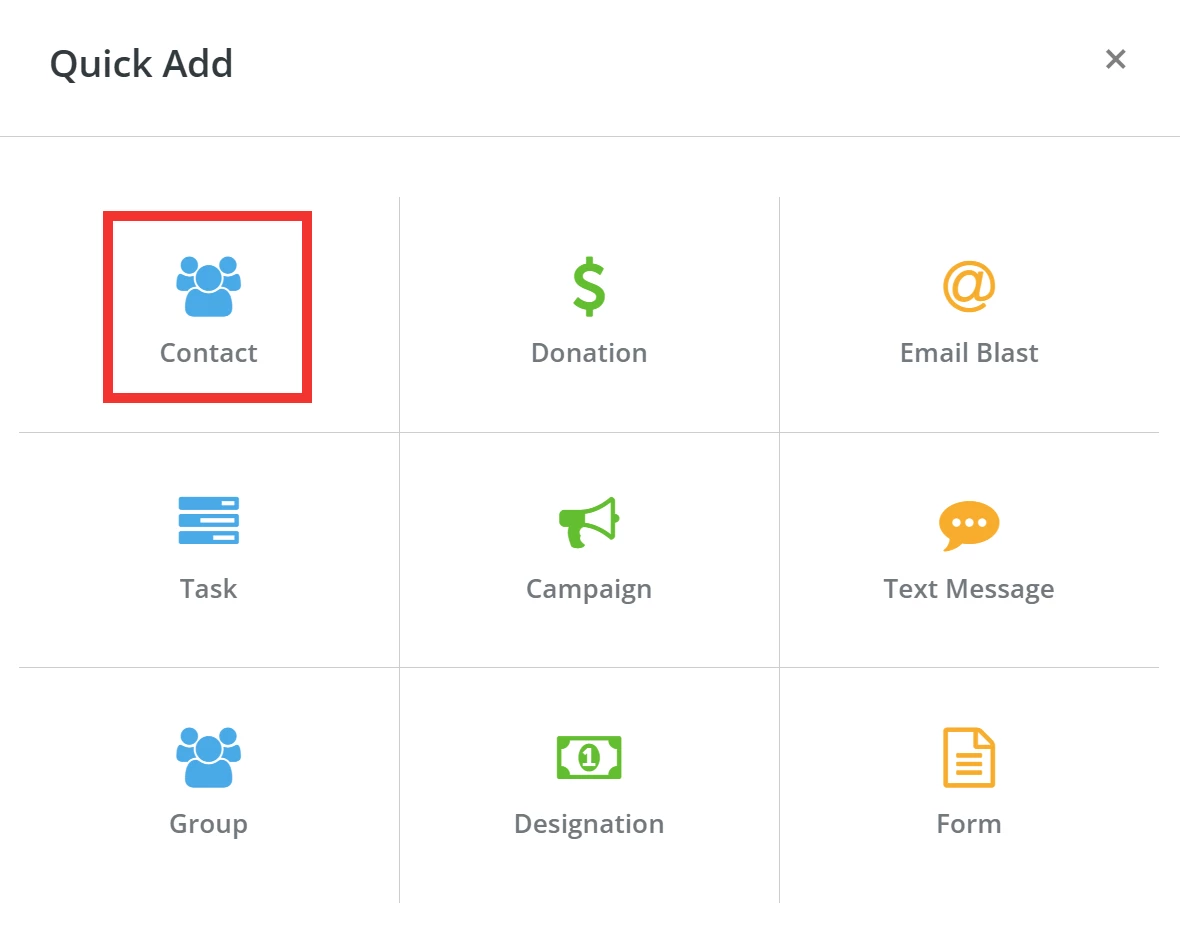
b) Click 'Quick Add +'
From your Dashboard, click 'Quick Add' in the top left corner of the page, above the navigation panel.

Note: If you are using a mobile device to view your 'Donor Management' Dashboard, you should have the option to click an 'Add' button at the bottom of the page.
Step 2: Start creating the contact record
Select 'Contact' from the pop-up window that appears.
Step 3: Choose the contact record type
You will be directed to the 'Add Contact' page and asked to choose the type of contact record you want to create. Select 'Individual'.
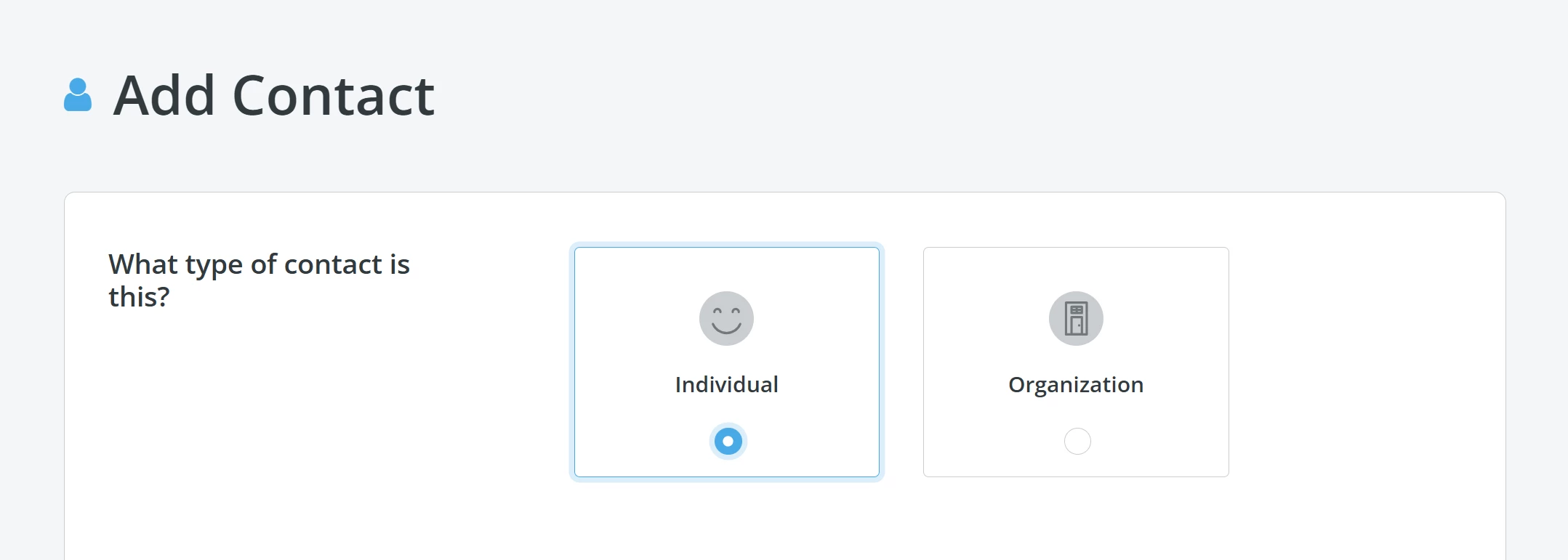
Tip: 'Individual' contacts typically have a Social Security Number (SSN), whereas 'Organization' contacts typically have an Employee Identification Number (EIN).
Step 4: Add the contact's basic information
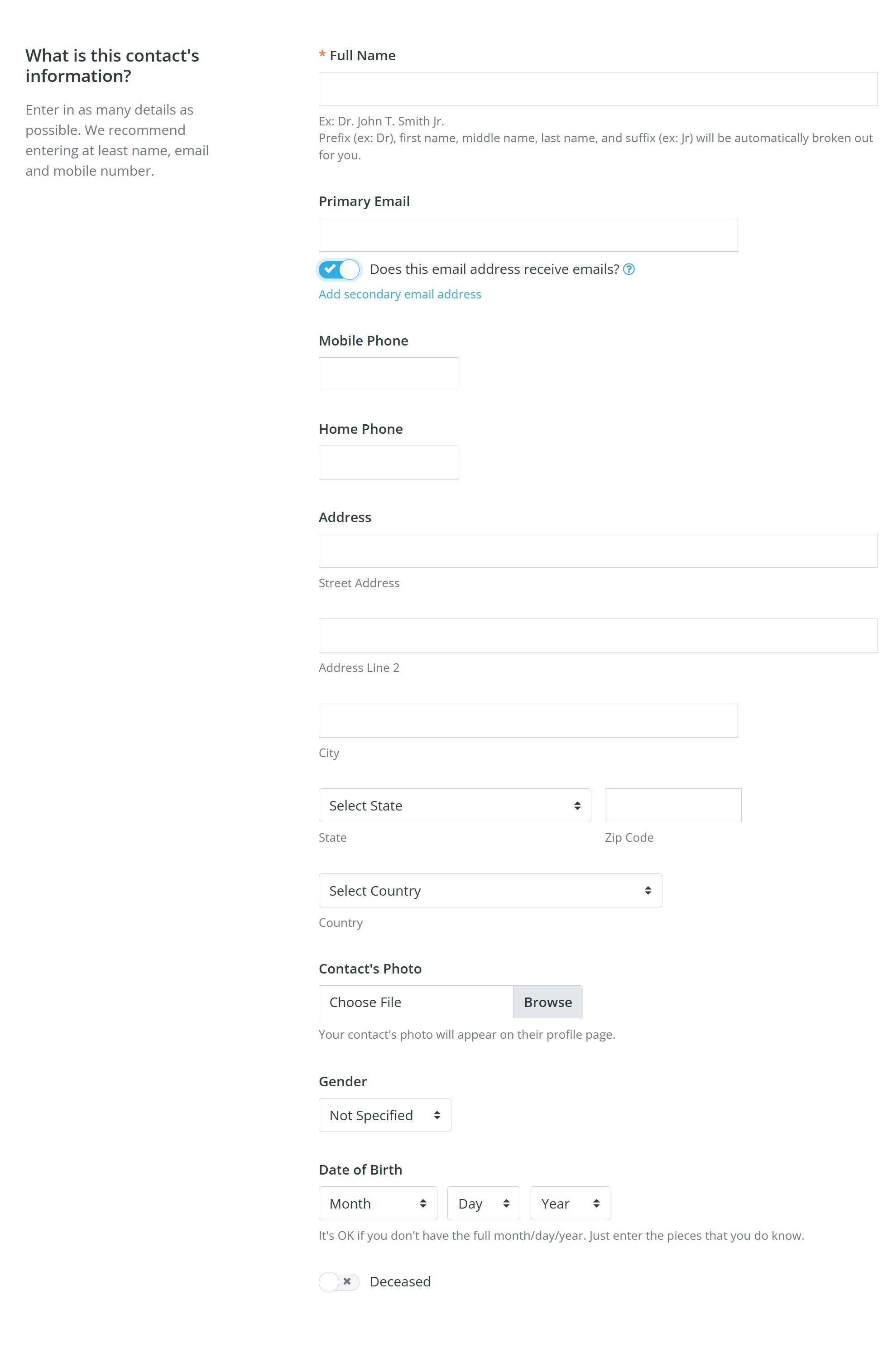
If you scroll down, you will be prompted to enter basic details about the contact.
Step 5: Add the contact's professional information
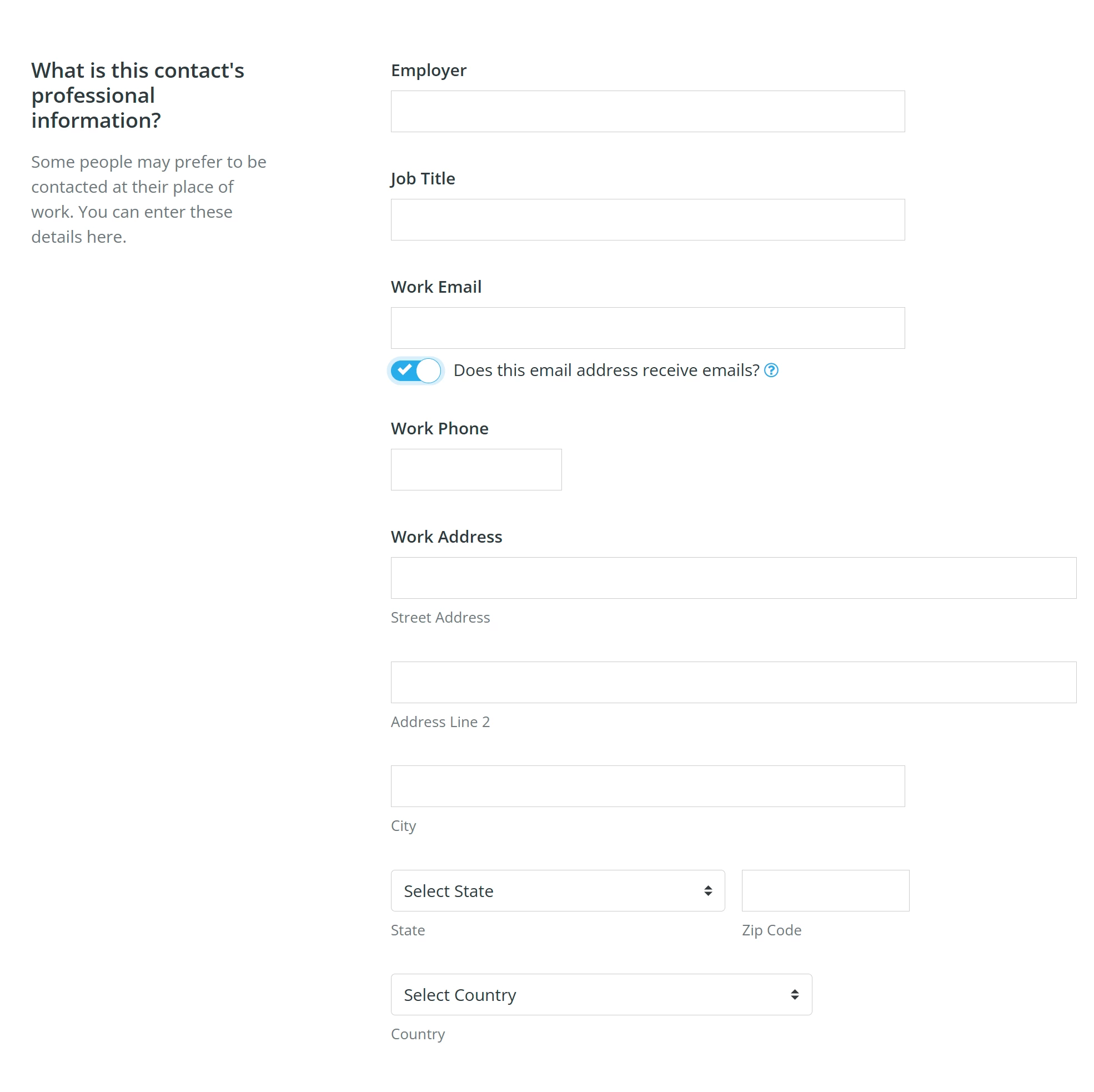
The next section will ask for the contact's professional information, such as their Employer, Job Title, etc.
Step 6: Add your contact to a group
At the bottom of the page, you can add your contact to a group (or groups) and use custom fields you have created to add more unique information about them.
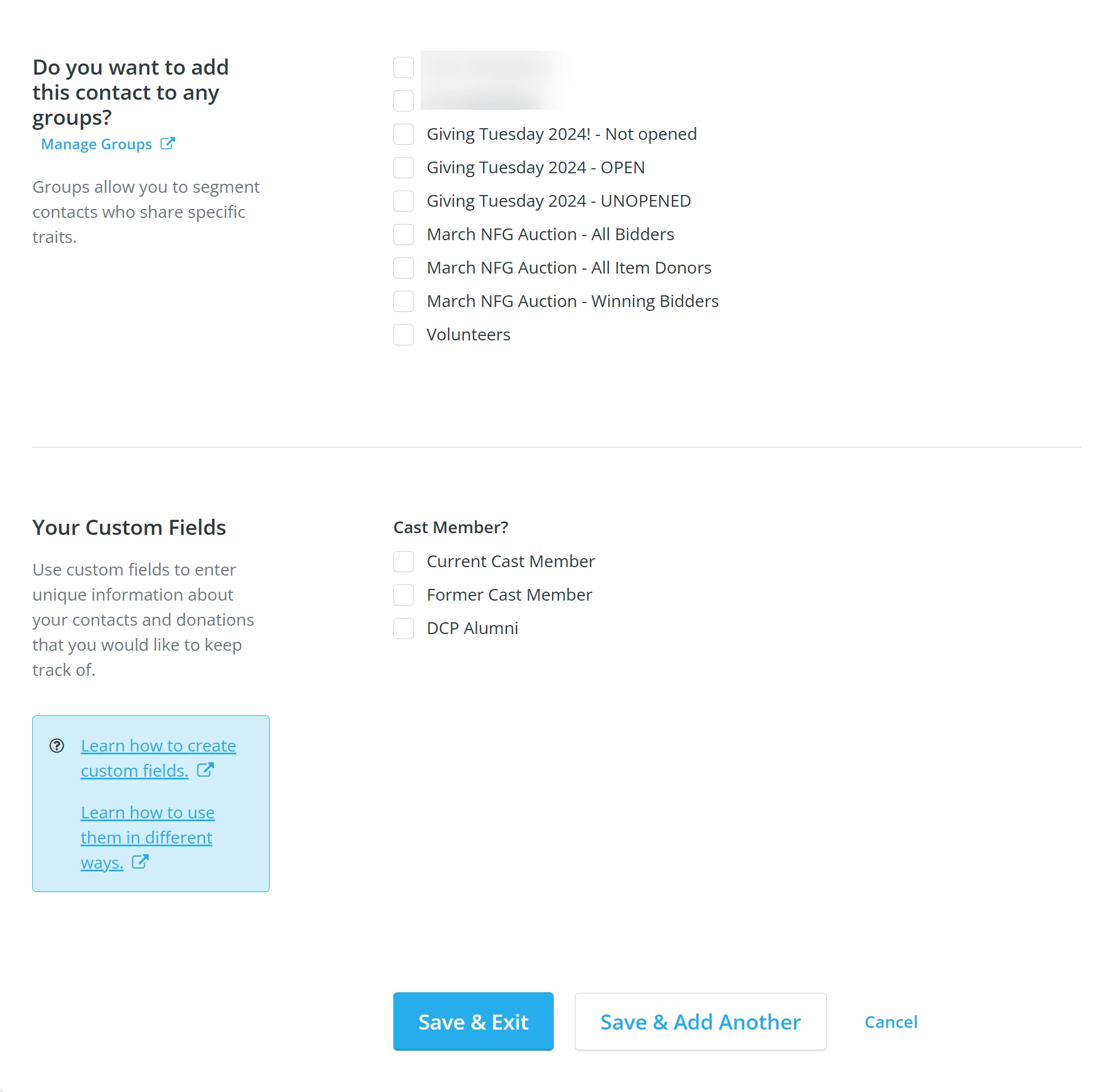
Once you are finished, click the 'Save & Exit' button at the bottom of the page.
Note: If you want to add multiple contact records in a row, click the 'Save & Add Another' button and the page will save the information you added and then refresh to allow you to add a new record.
What else do you need help with?
How do I add an individual contact to a group?
How do I manage individual contacts with multiple e-mail addresses?
How do I merge duplicate contact records?
How do I add multiple contacts to a group?
How do I add a contact record for an organization?
Not quite what you were looking for?
Navigate back to the Feature Overview.
How do I create a new individual contact in Donor Management? | What is the difference between an individual and organization contact? | Where is the Add Contact button in Network for Good? | How do I use Quick Add to create a contact? | Can I add multiple contacts at once manually? | How do I add a contact to a group when creating a record? | Why can’t I see the option to add a new contact?