



Looking to fine-tune a segment that Bonterra Que generated? This article shows how to open that segment in Create a List (CAL), make changes, and save it for use in Targeted Email and other workflows.
Bonterra Que can generate segments using:
-
DonorTrends pre-built models, or
-
Custom natural language queries based on your request
Follow the steps below to edit and refine a Que-generated segment in Create a List.
Step 1: Open your segment from Bonterra Que
In Bonterra Que, ask for or select a segment. This can be:
-
A model-based segment
(e.g., “Find lapsed donors likely to return”) -
A custom segment
(e.g., “Show me donors who gave more than $100 this year in Florida”)
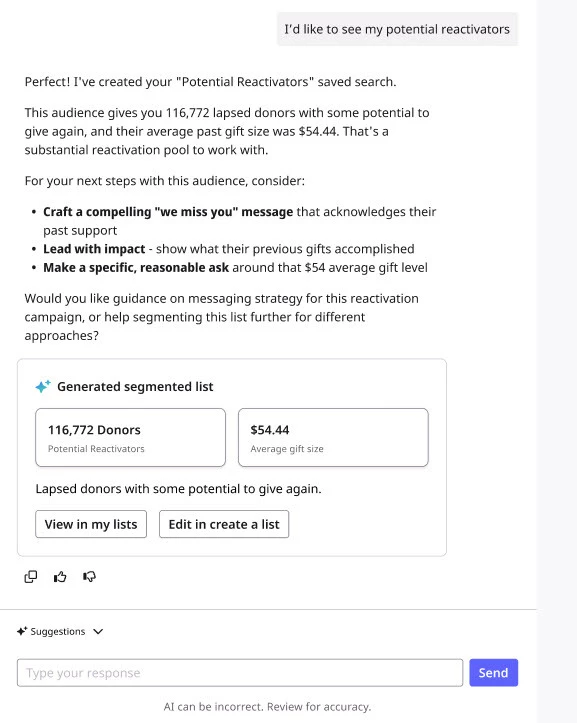
Que will generate a segment and display:
-
Key stats (e.g., size, average gift)
-
A preview of the audience
-
A summary of filters used (for custom segments)
[Optional] Expand the preview to spot-check records before editing.
Step 2: Move the segment into Create a List
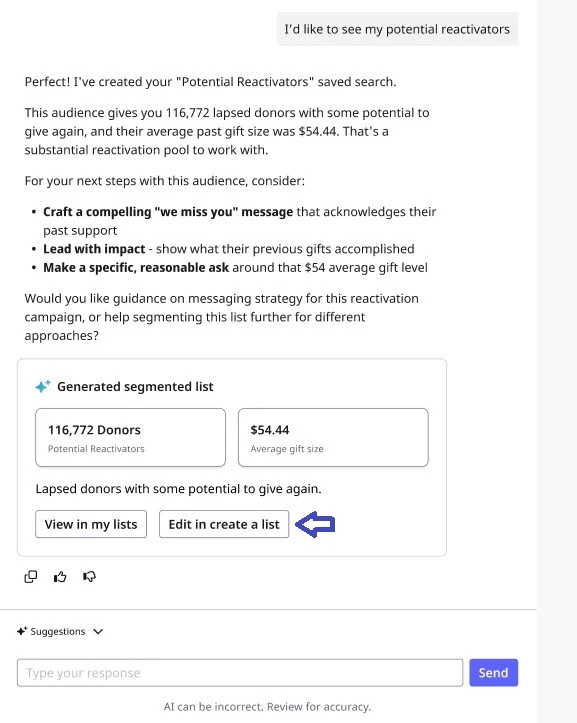
From the Que message with the generated list:
-
Click “Edit in Create a List”
-
Or select “View in My List” to review the full audience first
You’ll be redirected to Create a List with the segment’s filters pre-applied.
Step 3: Refine criteria in Create a List
In Create a List:
-
Review the pre-populated query
-
Add, remove, or adjust filters based on your campaign needs
-
Click Save to update the segment
[Optional]:
-
Run the list and save from My List (same save behavior)
Note:
If you edit a Que-generated segment in Create a List, it becomes a saved search or list that can be reused across workflows.
Step 4: (Optional) Refine in Que Before or After Editing
You can also refine your segment directly in Que before opening it in Create a List:
-
“Only include donors in California.”
-
“Exclude anyone who gave in the last 90 days.”
Que will update the segment and underlying filters, which can then be opened in Create a List for further editing.
Step 5: Use Your Edited Segment in Downstream Workflows
Once saved, your segment:
-
Can be used in any workflows that require a saved list or saved search — Targeted Emails, Mobile Message campaigns, reports, and more.
-
Is available for reporting and other outreach workflows
-
Remains accessible in My List
Things to Keep in Mind
-
Que-generated segments are built using Create a List filters, so you can always customize them further
-
Available filters depend on your Create a List permissions
What do you want to do next?
Interested in learning how Bonterra keeps your data safe? Read more about Bonterra's AI Responsibility and Data Security Practices here.
Curious about how you can access Bonterra Que? Read more about accessing Bonterra Que here.
Want to learn more about Donor Segmentation in Bonterra Que? Read more about Donor Segmentation here.
-
Ready to dive into Donor Segmentation now? Access these 'How do I' articles:
Want to learn more about Personalized Coaching in Bonterra Que? Read more about Personalized Coaching here.
Want to learn more about Email Creation in Bonterra Que? Read more about Email Creation here.
Want to learn more about Formbuilder in Bonterra Que? Read more about Formbuilder here.
Not what you are looking for? Return to Understanding Bonterra Que here.
How do I know that my data is secure with bonterra que? | How does know that my data is secure with bonterra que work in EveryAction? | Why can't I know that my data is secure with bonterra que? | Where do I know that my data is secure with bonterra que in EveryAction? | What is know that my data is secure with bonterra que in EveryAction? | How to know that my data is secure with bonterra que? | Can I know that my data is secure with bonterra que in EveryAction?